First-Line Support Homelab
This is a small-business IT setup built from spare parts, the kind of environment a first-line technician works tickets on. I built it to practise that work: joining machines to a domain, resetting accounts, fixing permissions, pushing policy. What follows is a reflection on the build: the steps, the snags, and at the end, what I'd do differently if I built it again.
- Proxmox
- Windows Server 2022
- Active Directory
- DNS / DHCP
- Group Policy
- Networking
What I built
One Proxmox host, one Windows Server 2022 VM doing AD, DNS and DHCP, one domain-joined Windows 11 workstation, and an admin laptop on Wi-Fi with RSAT, which is where I actually sit.
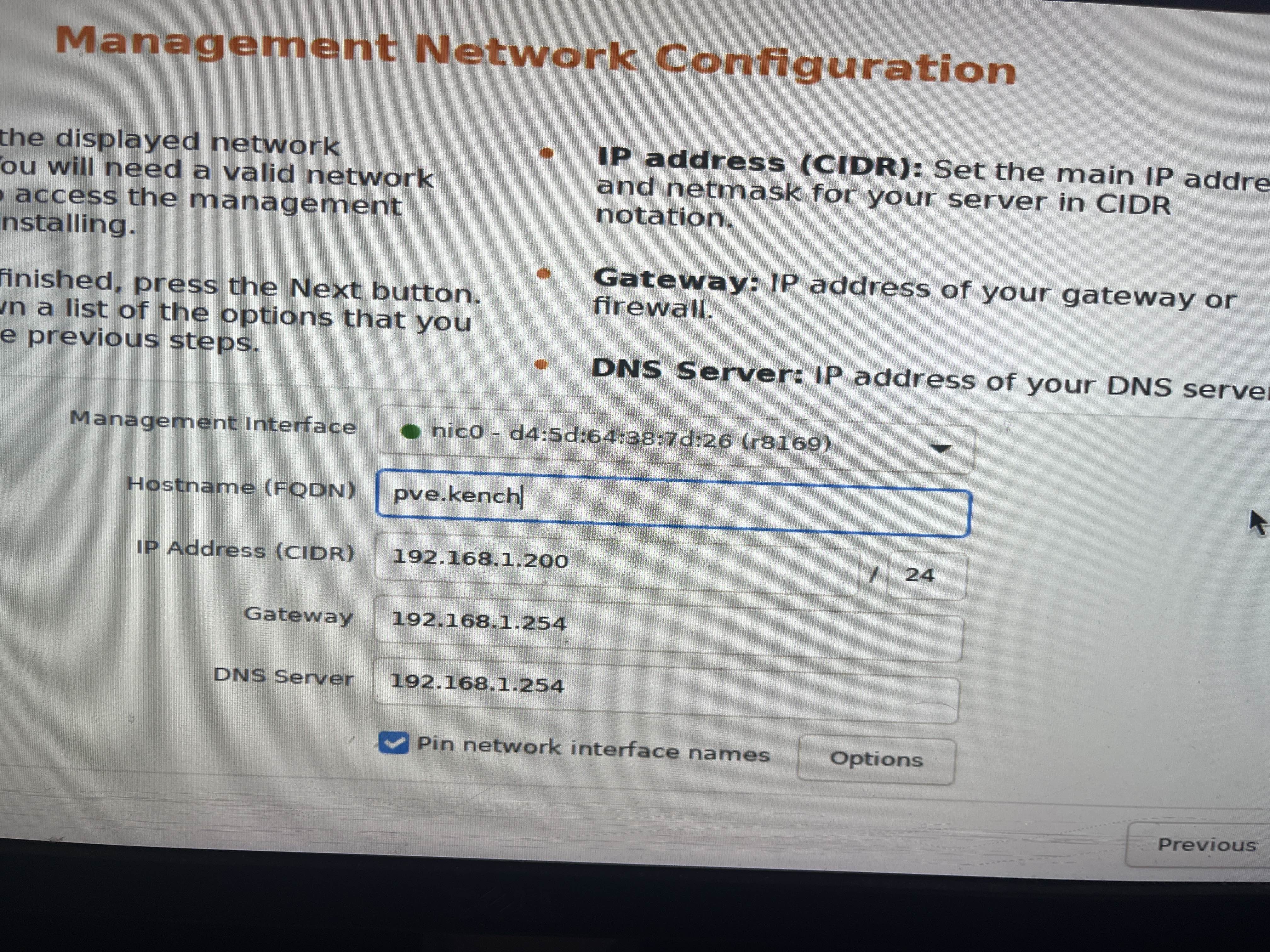
Proxmox on its own box rather than VirtualBox on my desktop was a deliberate choice. I wanted the lab always on and managed from another machine, because that's how a real server is run. The cost was a harder install (the GTX 760 snag below) and a second PC that never gets switched off.
The kit
- Hypervisor host
- Linux Mint PC → Proxmox · Intel i5 9th Gen · GTX 760 · 120GB Kingston SSD
- Workstation
- Windows 11 Home → Enterprise · wired via switch
- Admin laptop
- Windows 10 Pro · Wi-Fi · RSAT installed
- Network
- BT Hub router · unmanaged switch
- Boot media
- Kioxia 14.4GB USB running Ventoy
Bootable USB with Ventoy
One stick, every ISO. Ventoy boots whichever image you pick from a menu, so I'm not reflashing the USB for each new install.
- Downloaded Ventoy 1.1.12 for Linux and identified the stick with lsblk (it came up as /dev/sdg, 14.4GB).
- Unmounted it by device name (sudo umount /dev/sdg1) and ran sudo bash Ventoy2Disk.sh -i /dev/sdg.
- Confirmed twice — all data on the USB was wiped — then it remounted as an empty exFAT drive.
- Drag-and-dropped the Proxmox ISO onto the drive.
Snag: The stick showed 0B in lsblk, and umount by mount point failed.
Fix: Replugged it, then unmounted by device name (/dev/sdg1). Not much of a fix, but it was the first time I had to trust lsblk over the file manager.
Installing Proxmox on bare metal
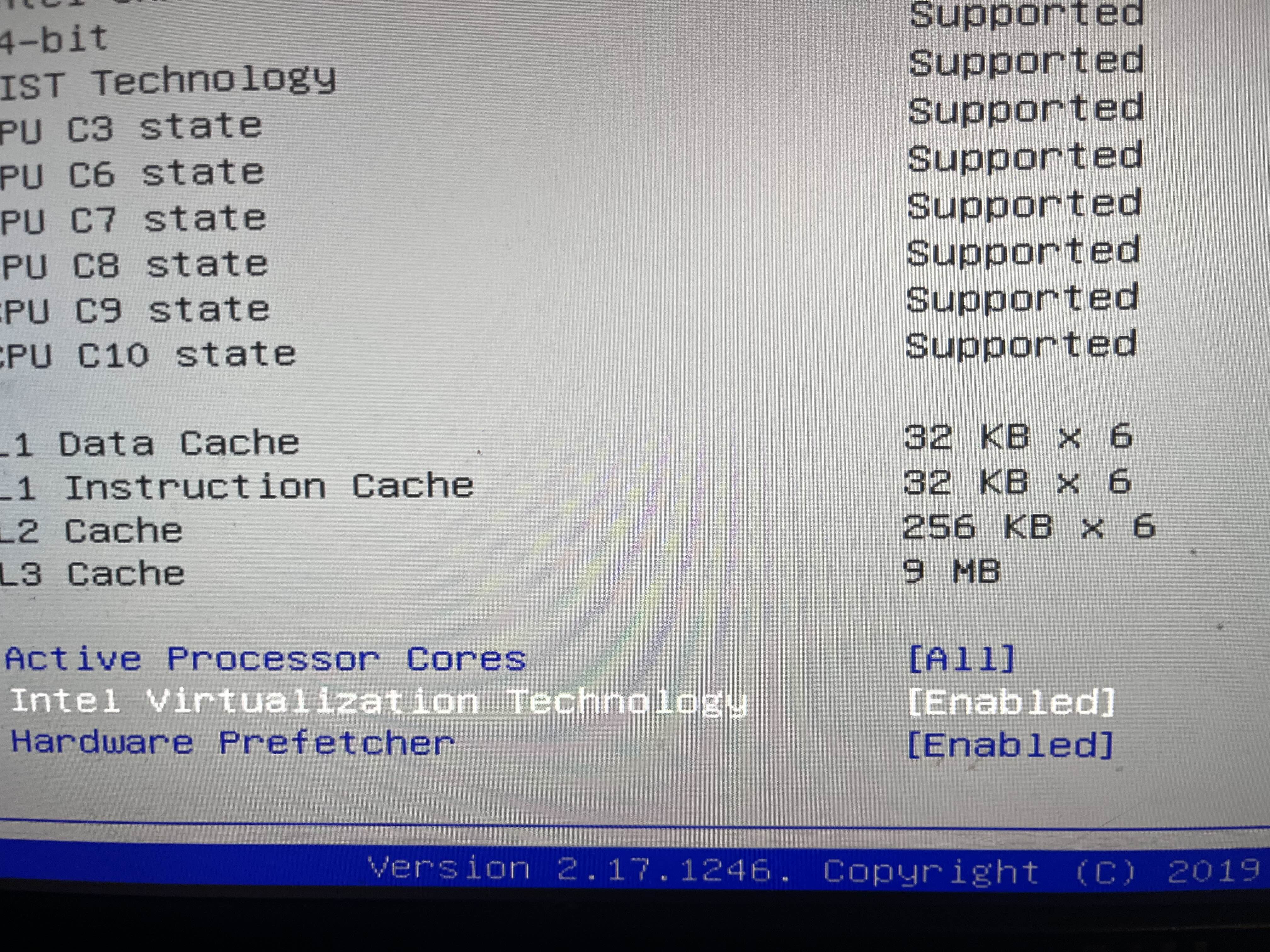
I booted the PC from the Ventoy stick, picked the Proxmox ISO, and hit trouble almost immediately.
Snag: The installer kept hanging on driver loading because of the Nvidia GTX 760.
Fix: At the Proxmox boot menu I pressed 'e' and added nomodeset nouveau.modeset=0 usbcore.autosuspend=-1 to the linux line, then Ctrl+X to boot. nomodeset stops it loading Nvidia drivers; usbcore.autosuspend=-1 stops the USB dropping mid-boot.
Snag: The installer couldn't find the ISO on a USB 3.0 port.
Fix: Moved the stick to a USB 2.0 port and it found the ISO straight away. My best guess is the installer's early boot stage wasn't loading the USB 3.0 controller in time. I never confirmed that, and it's the kind of thing I'd want to ask someone who knows.
Building the Windows Server VM
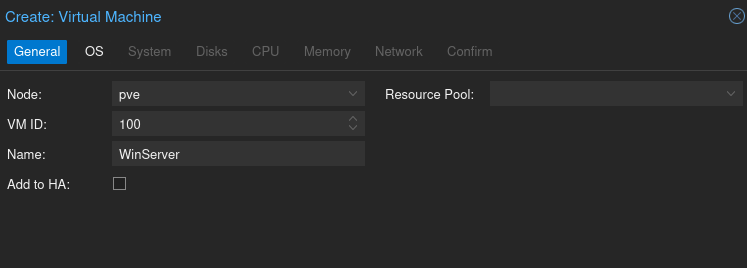
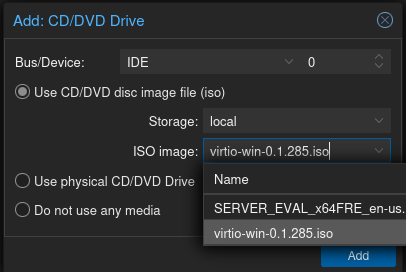
I uploaded the Windows Server 2022 Evaluation ISO and the VirtIO drivers ISO to Proxmox storage, checked the Server ISO's SHA256 against Microsoft's published hash, and built the VM that would become the domain controller. The sizing was a judgement call: the host has 6 cores and 16GB, so 3 cores and 6GB leaves room for a second VM. VirtIO for disk and network because it's faster than emulated hardware, at the price of Windows needing a driver before it can see its own disk. UEFI and a virtual TPM because that's what a modern Windows machine looks like, and I wanted the VM to match.
- Name / ID
- WinServer · VM 100
- Machine
- q35 · OVMF (UEFI) · TPM v2.0 · QEMU agent
- Disk
- VirtIO Block · 40GB · Discard on
- CPU / RAM
- 3 cores, 1 socket · 6144 MB
- Network
- VirtIO (paravirtualized)
Snag: The first install came up as Server Core, command line only. I'd clicked the top option without reading it.
Fix: Deleted the VM and reinstalled with 'Standard Evaluation (Desktop Experience)'. For a lab I wanted the consoles in front of me. In a real environment Core is the better choice for a domain controller (smaller attack surface, fewer patches) and you'd manage it from RSAT anyway, which is what the admin laptop does later on.
Snag: No drives showed up during install.
Fix: Clicked Load driver, browsed the VirtIO CD to viostor > amd64 > 2k22, and the 40GB disk appeared.
Configuring the server
After installing the VirtIO guest tools I renamed the server, gave it a static IP and corrected the time zone. The IP is 192.168.1.201, one above the DHCP range, so it can never be handed out to anything else. DNS points at the server itself, which Active Directory needs.
The router as backup DNS is a shortcut I wouldn't repeat. If the DC ever fell back to the Hub for DNS it would stop resolving homelab.local, and AD breaks in confusing ways when that happens. The right setup is the DC as the only DNS server, a forwarder in DNS Manager for internet names, and a second DC for resilience.
- Hostname
- DCO1
- IP address
- 192.168.1.201 / 255.255.255.0
- Gateway
- 192.168.1.254
- DNS
- 127.0.0.1 (self), 192.168.1.254 (backup)
- Time zone
- (UTC+00:00) Dublin, Edinburgh, Lisbon, London
Snag: The hostname is DCO1, letter O, not DC01. I didn't notice until the domain was already up.
Fix: I left it. You can rename a domain controller after promotion, but it touches DNS records and Kerberos and it isn't something to do casually. For a lab, the lesson was worth more than the tidy name: check the hostname before you promote. It's DCO1 everywhere on this page on purpose.
Active Directory
New forest, root domain homelab.local. That name is what every tutorial uses and what I'd avoid next time: .local collides with mDNS on some devices, and you can't get a public certificate for it. Current advice is a subdomain of a domain you own, which for me would be something like ad.stanley-milbourne.com.
- Added the Active Directory Domain Services role via Server Manager and pulled in the required features.
- Promoted the server to a domain controller, adding a new forest with root domain homelab.local and a DSRM recovery password.
- After the restart the login screen read HOMELAB\Administrator — the domain was live.
Users, OUs and groups
Two rules I followed from the start. Permissions go on groups, never on people, so when John leaves and Jane starts the only change is group membership. And Staff and IT are separate OUs so different policies can be linked to each later without touching the other.
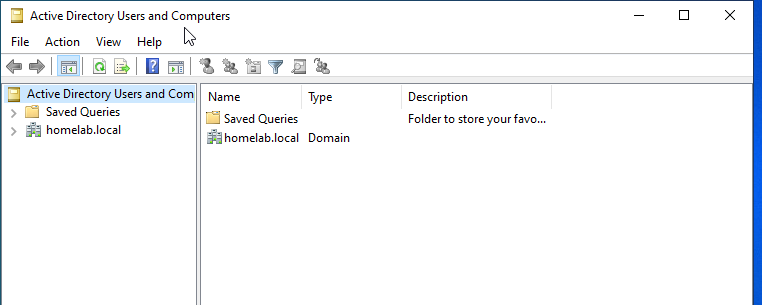
- Created users in Active Directory Users and Computers (e.g. John Smith, logon john.smith).
- Made Staff and IT OUs and moved users into them.
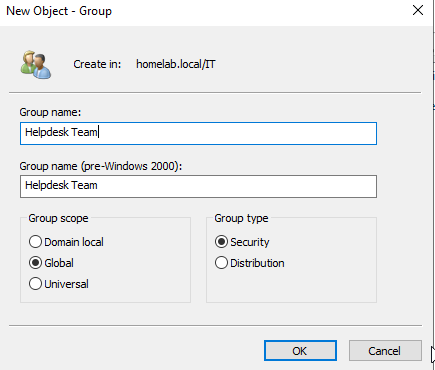
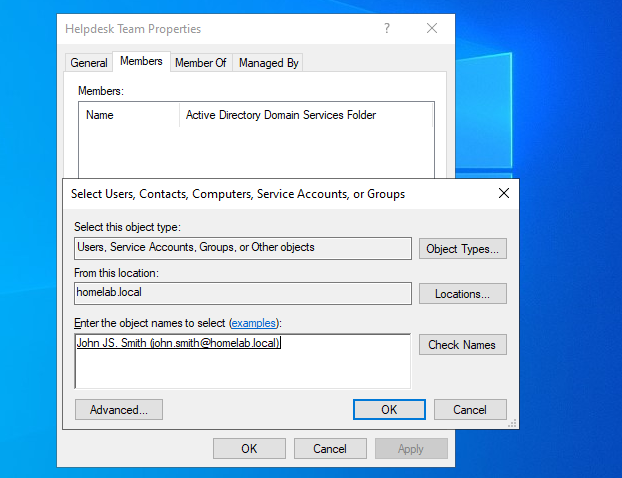
- Created a 'Helpdesk Team' global security group in the IT OU and added John Smith.
- Practised the bread-and-butter tasks: resetting passwords, disabling and re-enabling accounts.
Shared folders and permissions
'I can't access the folder' is one of the most common tickets there is, so getting permissions right matters. Share permissions control access over the network, NTFS (Security) permissions control it at the file-system level.
When the two disagree, the most restrictive permission wins.
- Created C:\SharedFiles with IT_Documents and Staff_Documents subfolders.
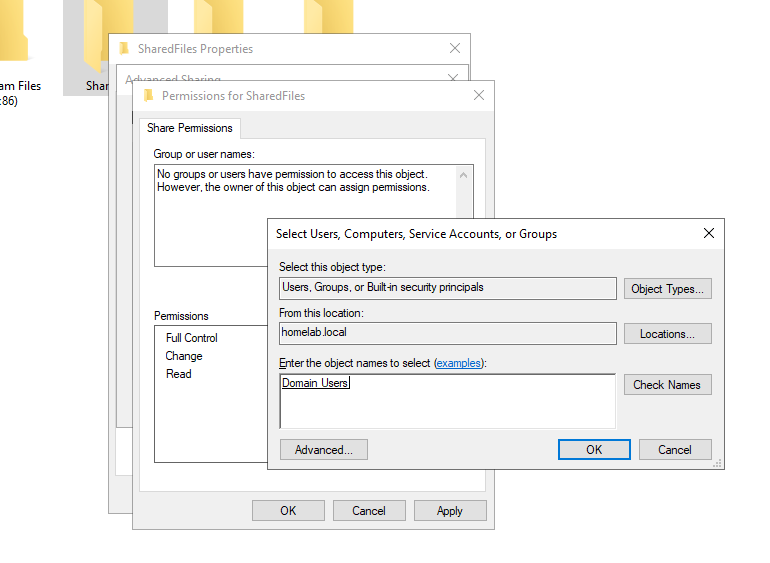
- Shared the parent folder, removed Everyone and gave Domain Users Read.
- On IT_Documents, granted the Helpdesk Team group Modify via the Security tab.
- Result: everyone sees the share, but only the Helpdesk Team can edit IT_Documents.
DHCP
The DC hands out 192.168.1.100 to .200 with the gateway, the DC as DNS and homelab.local as the parent domain, so a new machine on the switch comes up able to find the domain without anyone typing an address.
- Added the DHCP Server role and authorised it with HOMELAB\Administrator.
- Created the 'HomeLab Scope' over 192.168.1.100–200, mask 255.255.255.0.
- Set scope options: gateway 192.168.1.254, DNS 192.168.1.201, parent domain homelab.local.
- Activated the scope.
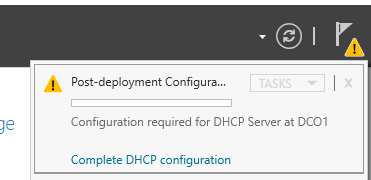
Snag: The BT Hub is still running its own DHCP server. I set the scope up on the DC and assumed the Hub's range sat above mine. I hadn't checked. BT hubs hand out roughly .64 to .253 by default, which overlaps my whole scope, and the Proxmox host at .200 is on the last address of my own range with no exclusion. Two DHCP servers on one LAN means whichever answers first wins. In an office that's a rogue-DHCP incident. It's the same problem as the domain-join snag further down: the Hub and the DC both trying to configure the PC, and the Hub winning.
Fix: Not yet. The plan is to turn DHCP off on the Hub so the DC is the only server, end the scope at .199 or add an exclusion for .200, then release and renew on the workstation and check with ipconfig /all that the lease came from 192.168.1.201.
Group Policy
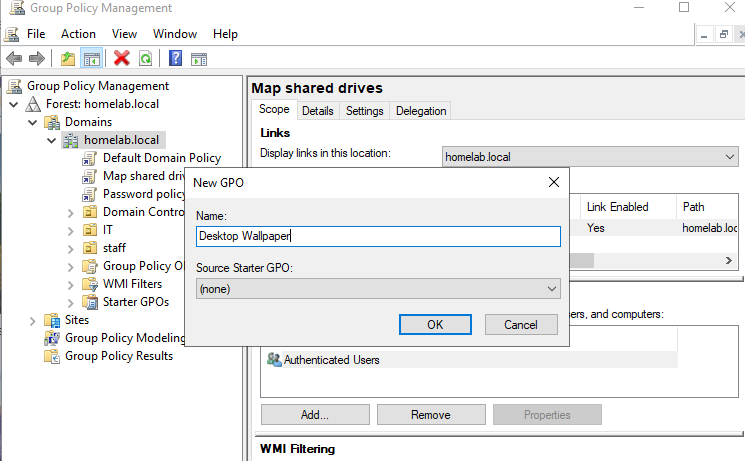
Four GPOs: two a real domain needs on day one (password and lockout), one that proves policy reaches the PC in a way a user notices (the mapped drive), and one that proves it in a way they can't miss (the wallpaper).
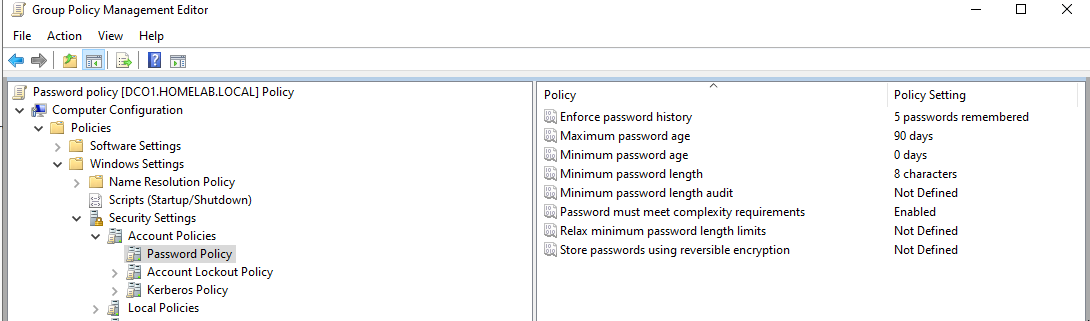
- Password policy: 8-character minimum, 90-day max age, complexity on, 5 passwords remembered.
- Account lockout: 5 bad attempts, 30-minute lockout, 30-minute reset counter.
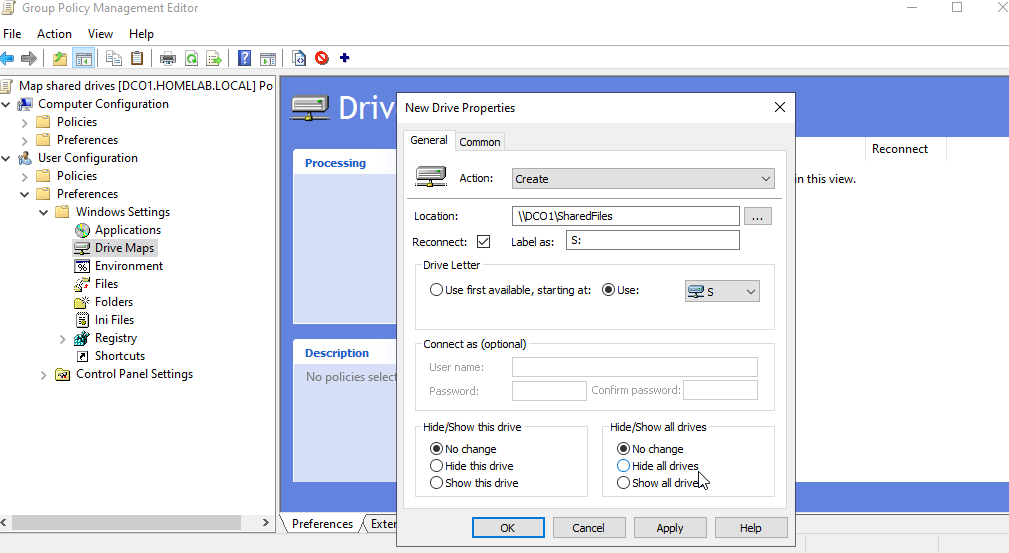
- Mapped drive: a Group Policy Preference that maps S: to \\DCO1\SharedFiles at login. A preference rather than a logon script, because anyone can see and change it in GPMC without reading code.
- Desktop wallpaper: pushes a company wallpaper from \\DCO1\Wallpapers, Fill style.
The password policy is the classic default and I'd change it now. NCSC guidance for years has been to stop forcing regular expiry, drop complexity rules, and rely on length plus lockout instead. If I rebuilt it: 12 characters minimum, no expiry, keep the 5-attempt lockout.
Joining the workstation to the domain
This is the step everything builds towards: the PC joins the domain and starts behaving like a managed office machine. One catch first. It was on Windows 11 Home, which can't join a domain, so I changed the edition to Enterprise with changepk.exe /ProductKey. Pro would have done the same job and is what a business laptop normally has.
Snag: The PC wouldn't resolve homelab.local. The Hub was handing it a DNS server over IPv6, and Windows preferred that over the IPv4 DNS I'd set.
Fix: Set DNS to the DC (netsh interface ip set dns "Ethernet" static 192.168.1.201), then disabled IPv6 with DisabledComponents 0xFF under Tcpip6\Parameters, and rebooted. That's the blunt fix. Microsoft advises against turning IPv6 off entirely; the gentler options are 0x20, which makes Windows prefer IPv4, or giving the DC as the IPv6 DNS server too. I wanted the join to work that evening. On a real network I'd ask before doing this.
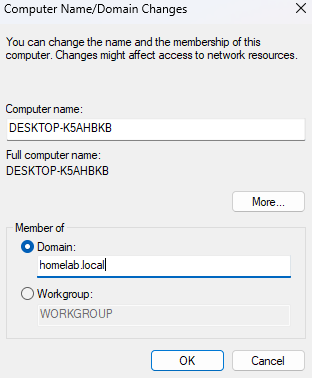
- Joined homelab.local via Settings > System > About > Domain or workgroup using HOMELAB\Administrator.
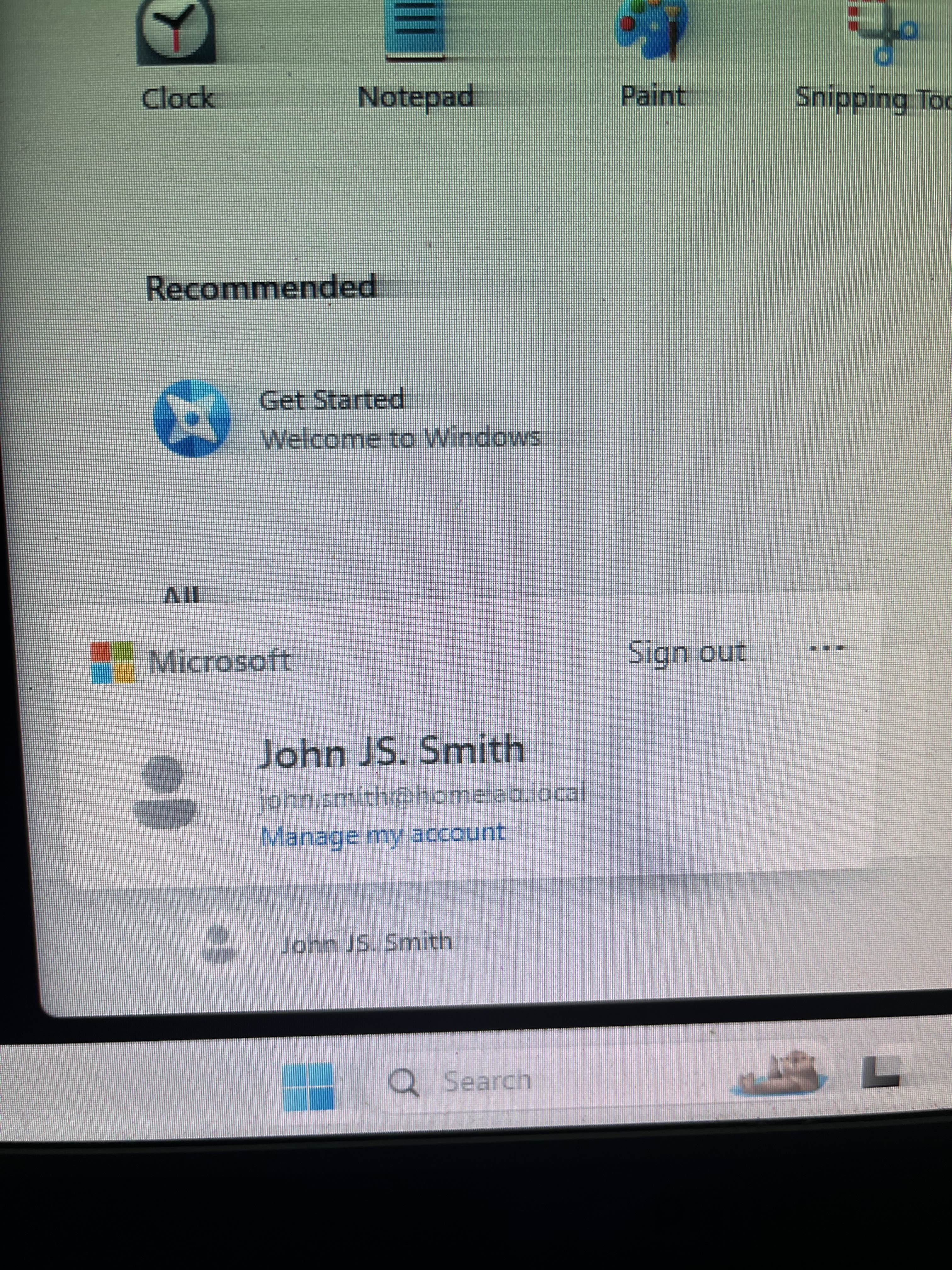
- Logged in as HOMELAB\john.smith — the S: drive mapped and the company wallpaper applied automatically (GPOs working).
- File permissions behaved correctly on the shared folders.
The admin laptop
The laptop is where the technician actually sits: you manage the whole domain from it, same as a real support job. I joined it over Wi-Fi (DNS pointed at the DC, IPv6 off), logged in as the domain admin, and installed RSAT. Logging in as Domain Admin on a laptop is lab behaviour. At work you'd have a separate admin account and only use it for admin tasks.
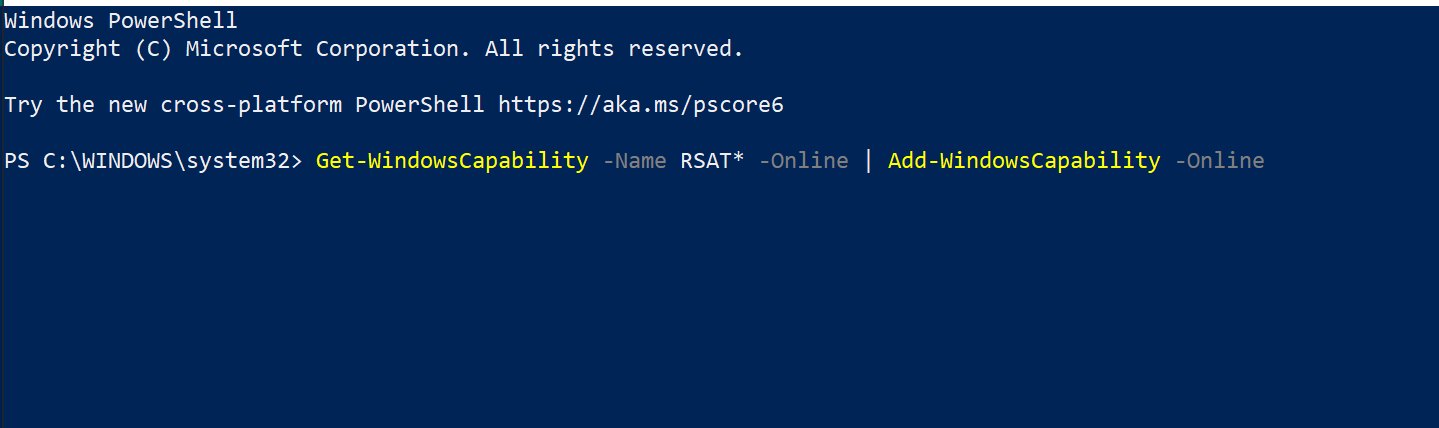
- Installed RSAT via PowerShell: Get-WindowsCapability -Name RSAT* -Online | Add-WindowsCapability -Online.
- That brought in AD Users and Computers, DNS, DHCP and Group Policy Management.
Day to day, from this laptop:
- Reset passwords and unlock accounts after failed logins.
- Disable / enable accounts for starters and leavers.
- Add users to security groups to grant access.
- Troubleshoot mapped drives (gpresult /r) and file permission issues.
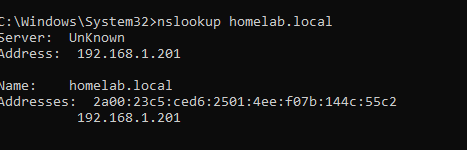
- Check DHCP leases and chase DNS problems (nslookup, ipconfig /flushdns).
- Force policy with gpupdate /force and remote into workstations.
What I'd do better if I built it again
Most of these are mentioned where they happened. Here they are in one place, in the order I'd fix them.
- DNS: make the DC the only DNS server, with a forwarder in DNS Manager for internet names, and add a second DC. No router as backup.
- DHCP: turn the Hub's DHCP off before creating the scope, and end the scope at .199 so the Proxmox host at .200 sits outside it.
- Hostname: check it before promoting the domain controller. DC01, not DCO1.
- Domain name: a subdomain of a domain I own, like ad.stanley-milbourne.com, instead of homelab.local.
- Password policy: follow the NCSC guidance. 12 characters minimum, no forced expiry, no complexity rules, keep the 5-attempt lockout.
- Server Core for the domain controller, managed from RSAT on the laptop, instead of the full desktop.
- IPv6: leave it on and make Windows prefer IPv4 (DisabledComponents 0x20), or hand out the DC as the IPv6 DNS server, instead of switching it off entirely.
- Admin account: a separate account for admin work, instead of logging in as Domain Admin day to day.
- Workstation edition: Pro rather than Enterprise, because that's what a business PC would have.
This is as far as one person and a box of spare parts gets. What I haven't done is any of it with real users, a ticket queue, change control, or someone checking my work before it goes live. That's what I want an apprenticeship for.